
3DS - PagSeguro
Only for credit cards
Complete PagSeguro 3DS authentication flow
Overview
Complete 3DS integration flow:
- [Manual action] Generate API credentials in your logged-in area (client ID/secret and Store ID).
- [Backend] Create a session access_token via OAuth2 (backend).
- [Frontend] Load and configure the JavaScript SDKs.
- [Frontend] Execute
PSI.threeds.authenticate(...)to obtain theauth.id. - [Backend] Use that ID in your Create Transaction API call.
- [Frontend] Simulating sandbox scenarios.
- [Frontend/Backend] Extras success and error scenarios properly.
Reference: Create Transaction API
3DS authentication is currently supported only in the following countries:
- Brazil
- Mexico
- Chile
Supported card networks:
- Visa
- Mastercard
1. Credential Generation - [Logged-in Area]
-
Access your account through the MyAccount link.
-
Navigate to Account Settings > Config & Key.
On the Config & Key page, go to the Credentials section and click the Generate button.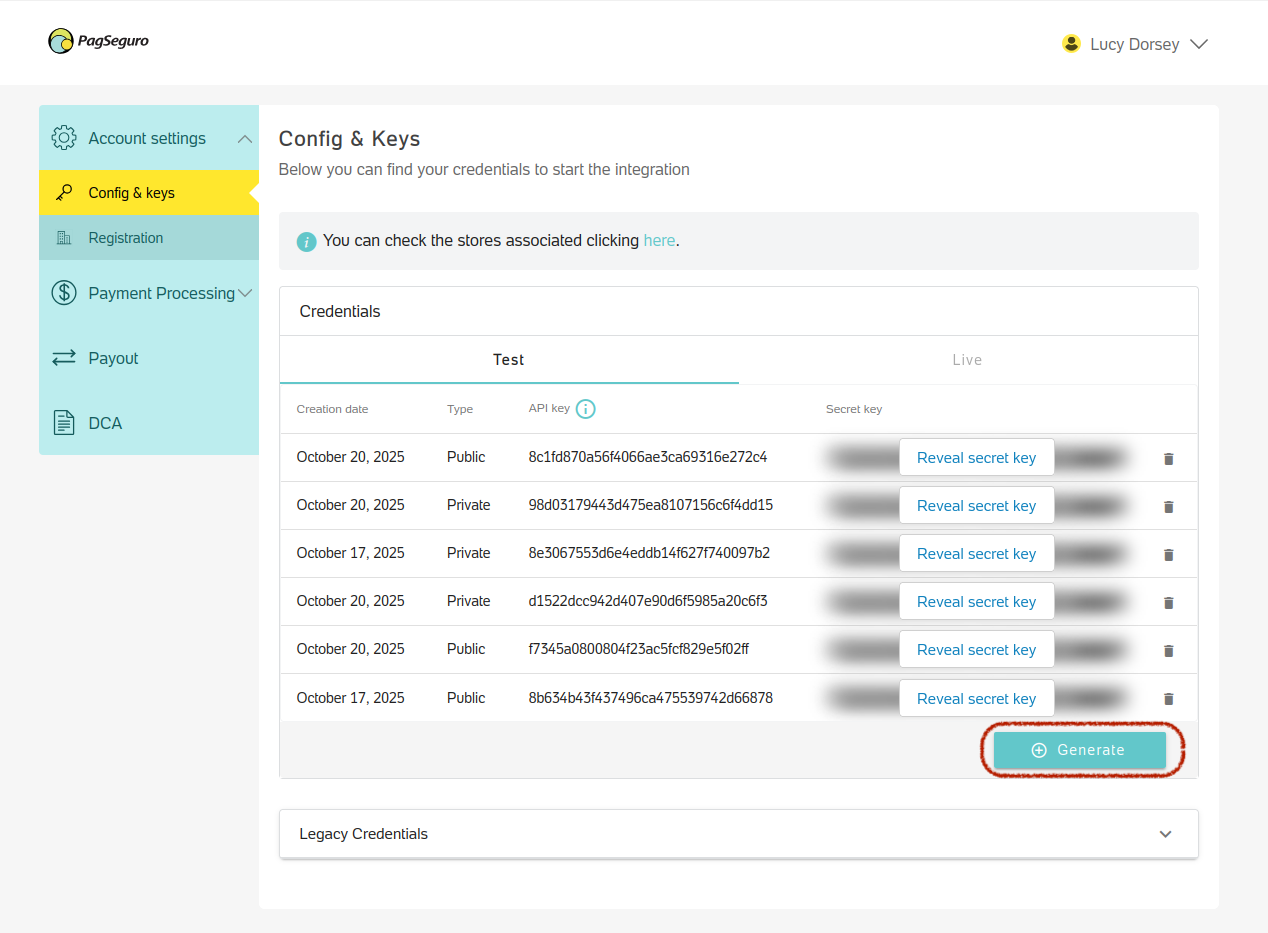
-
A modal will appear with credential type options.
Select Public Key and click Generate.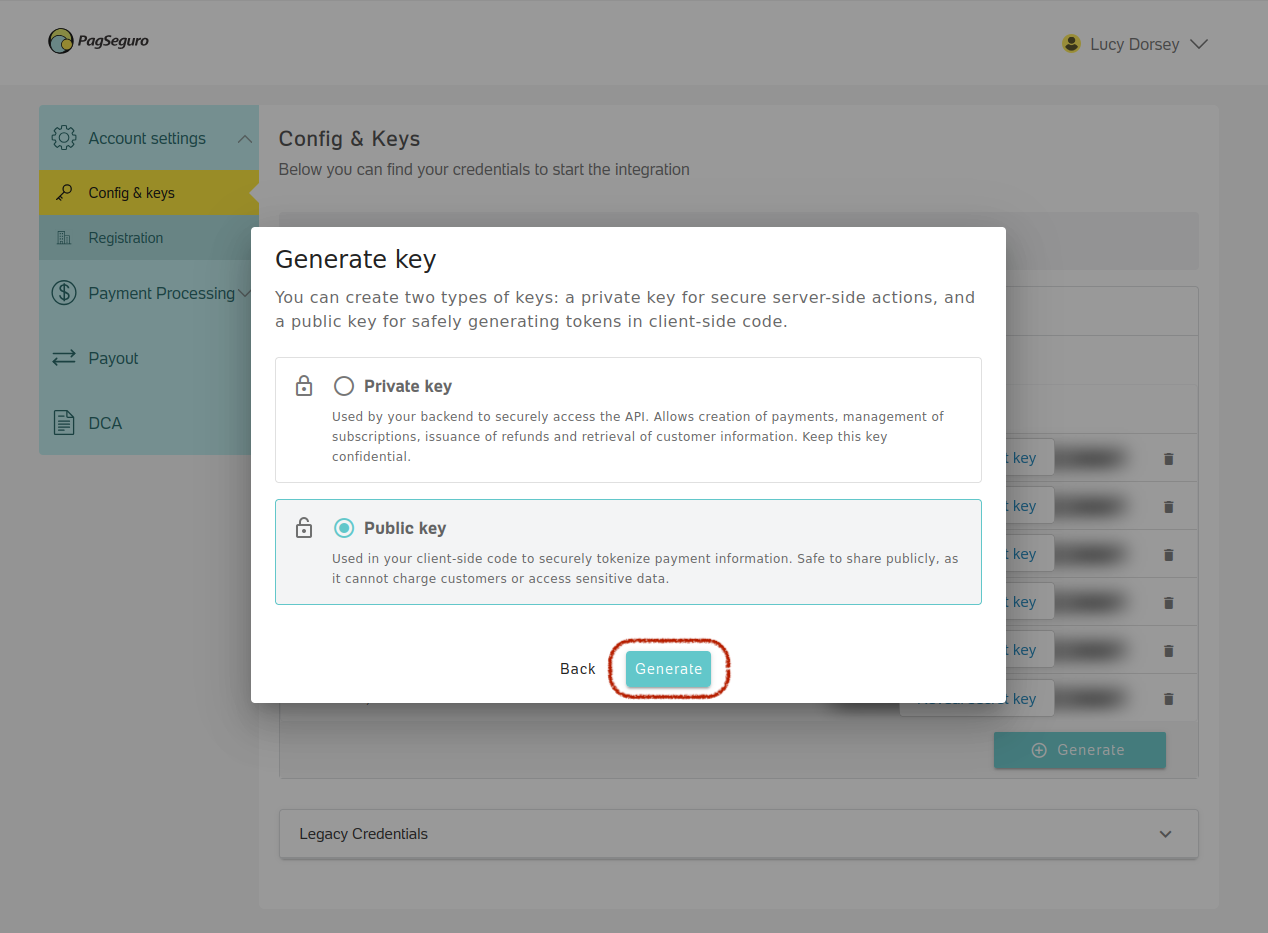
-
The modal will close after loading, and you will return to the Config & Key page with the newly generated credential.
-
Click Reveal secret key to access your API key.
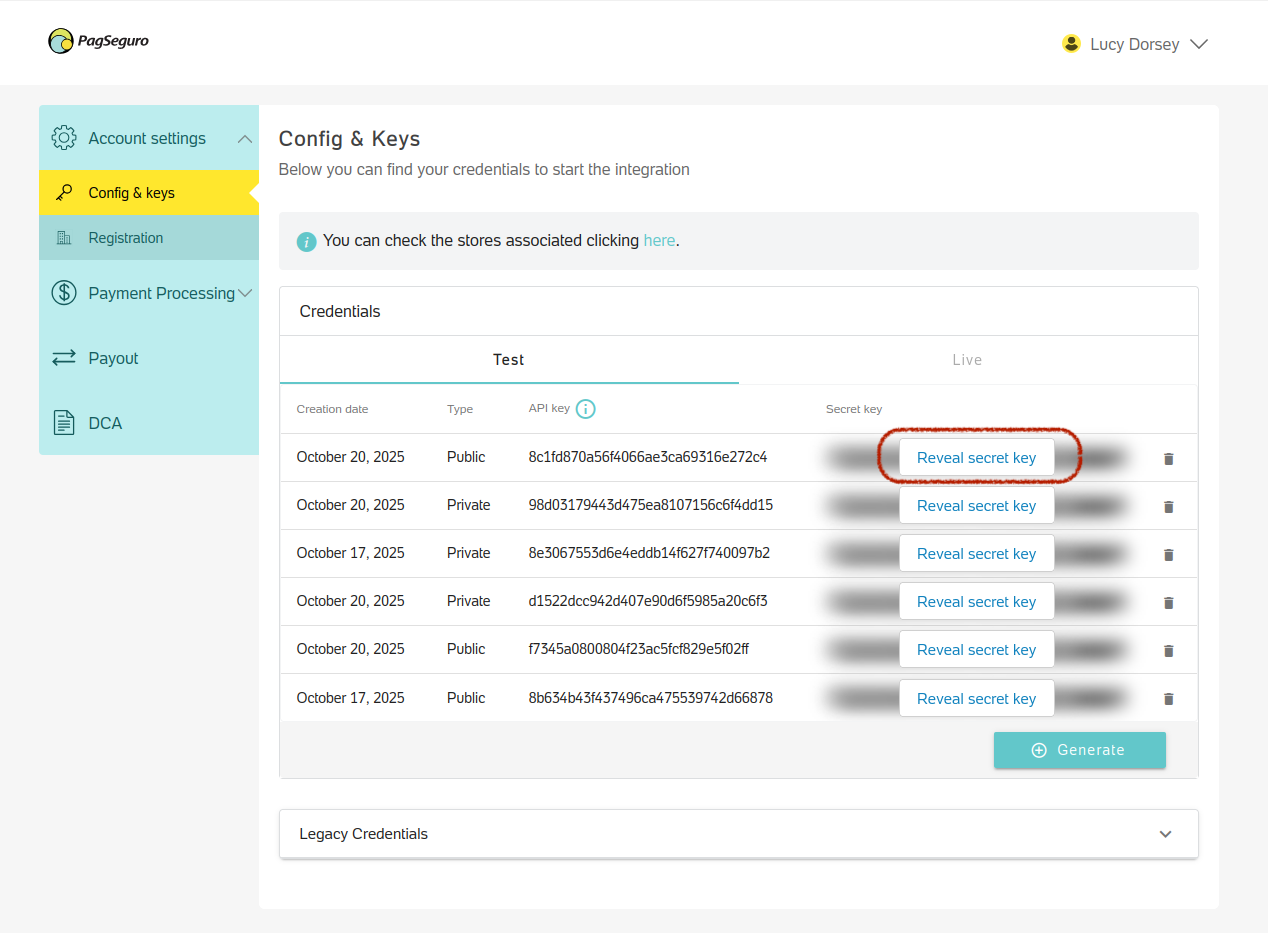
Use the secret key as the authentication token to generate the 3DS authentication session.This Secret Key will be referred to as api_token_public from now on. You will use it to generate Session Tokens in the next integration step.
2. Generate Access Token - [Backend]
Use the OAuth2 Client Credentials flow securely in your backend. Never expose credentials to the frontend.
Example:
curl -v --request
POST \
	--url https://api.sandbox.international.pagseguro.com/sessions \
  --header 'Authorization: Basic {{api_token_public}}' \
  --header 'Content-Type: application/x-www-form-urlencoded' \
  --header 'X-Store-Id: {{you_store_id}}' \
  --data grant_type=client_credentials
Typical response:
{
  "access_token": "eJd61f1fZzSDWKT2Jl4Rmchjee8Q20...",
  "token_type": "Bearer",
  "expires_in": 3599,
  "scopes": [
    "sdk.*"
  ]
}
Tips:
- Cache tokens until expiration.
- Renew ~5 minutes before expiry.
- Always send the correct
X-Store-Idmatching your environment.
3. Frontend Setup (SDKs) - [Frontend]
Include the required scripts in your checkout page:
<script src="https://stc.international.pagseguro.com/sdk/1.0/threeds.js"></script>
<script src="https://stc.international.pagseguro.com/sdk/1.0/main.js"></script>
Important: The SDK address is unique. You must use the environment variable set during the script initialization to target the desired environment.
The available options are
sandbox, orproduction.
4. SDK Initialization and 3DS Authentication - [Frontend]
Example implementation:
<script>
(async function () {
  try {
    const accessToken = "{{your_access_token_session}}";

    const PSI = PagSeguroInternational({
      accessToken: accessToken,
      environment: "sandbox" // or "production"
    });

    const auth = await PSI.threeds.authenticate(
{
  payer: {
    name: "João de Oliveira",
    email: "[email protected]",
    phones: [
      {
        country: "55",
        area: "21",
        number: "912345678",
        type: "MOBILE"
      }
    ]
  },
  charge: {
    country: "BR",
    amount: {
      currency: "BRL",
      value: 125075
    },
    paymentMethod: {
      type: "CARD",
      card: {
        number: "4000000000001091",
        expirationMonth: "08",
        expirationYear: "2027",
        holderName: "JOAO C OLIVEIRA"
      },
      installments: 1
    }
  },
  address: {
    billing: {
      street: "Avenida Paulista",
      number: "1578",
      complement: "Conjunto 142",
      city: "São Paulo",
      regionCode: "SP",
      postalCode: "01310200",
      country: "BR"
    },
    shipping: {
      street: "Rua das Acácias",
      number: "456",
      complement: "Apt 301",
      city: "Rio de Janeiro",
      regionCode: "RJ",
      postalCode: "22071900",
      country: "BR"
    }
  }
}
);

    console.info(auth); // Contains 3DS authentication result (auth.id)

  } catch (error) {
    switch (error.type) {
      case 'SDKError':
        console.error({ module: error.module, code: error.code });
        break;
      case 'ProcessingError':
        console.error({ code: error.code, errors: error.errors });
        break;
      default:
        console.error(error);
    }
  }
})();
</script>
Key Output: On success, the property auth.id — this value must be used when creating the payment transaction.
{
  id: "3DS_7bc0be8c-3601-46cf-a291-a8a15666395d",
  status: "AUTHENTICATED",
  authentication: {
    eci: "05",
    pares_status: "Y",
    version: "2.2.0"
  }
}
{
code: "API_INTERNAL_SERVER_ERROR",
module: "THREEDS",
name: "SDKError",
type: "SDKError"
}{
code: "PAYLOAD_INVALID",
errors: [
{
location: "charge.paymentMethod.card.number",
message: "Invalid card number"
}
],
module: "THREEDS",
name: "ProcessingError",
type: "ProcessingError"
}
Important: A challenge may be requested.3DS authentication may open an iframe to present a challenge request required by the cardholder’s issuing bank.
The experience and the method by which the challenge is carried out are entirely orchestrated by the issuer. PagSeguro has no control over this step.
4.1 SDK Field Validations
Below is a detailed table of all validation rules enforced by the PagSeguro International 3DS SDK. Use this section to ensure your payload meets the requirements before invoking PSI.threeds.authenticate().
PAYER Object
| Field | Type | Required | Constraints | Validation Rules |
|---|---|---|---|---|
payer.name | string | Yes | 1–100 chars | Must include at least two words (first and last name). |
payer.email | string | Yes | — | Must be a valid email format. |
payer.phones | array | Yes | ≥1 item | Must include at least one phone with type = MOBILE. |
PHONE Object (within payer.phones)
| Field | Type | Required | Constraints | Validation Rules |
|---|---|---|---|---|
phone.area | string | Yes | ≥1 digit | Digits only (^\d+$). |
phone.type | enum | Yes | — | Allowed: MOBILE, HOME, BUSINESS. |
phone.number | string | Yes | 6–9 digits | Digits only (^\d+$). |
phone.country | string | Yes | 1–3 digits | Digits only; transformed to uppercase. |
CHARGE Object
| Field | Type | Required | Constraints | Validation Rules |
|---|---|---|---|---|
charge.amount.value | integer | Yes | ≥100 | Positive integer (e.g., 1550 = $15.50). |
charge.amount.currency | enum | Yes | — | Must match country (see cross-validations). Allowed: BRL, CLP, COP, MXN, PEN, USD. |
charge.country | enum | Yes | — | Allowed: BR, CO, CL, MX, PE. |
charge.paymentMethod.type | enum | Yes | — | Must be CARD. |
charge.paymentMethod.installments | integer | Yes | 1–18 | Max 18 (Mexico), 12 (others). |
CARD Object (Option 1 – Tokenized Card)
| Field | Type | Required | Constraints | Validation Rules |
|---|---|---|---|---|
card.id | string | Yes | ≥1 char | Strict mode — no extra fields allowed. |
CARD Object (Option 2 – Raw Card)
| Field | Type | Required | Constraints | Validation Rules |
|---|---|---|---|---|
card.number | string | Yes | 13–19 digits | Must pass Luhn check. |
card.holderName | string | Yes | 1–50 chars | Must contain first and last name. |
card.expirationYear | string | Yes | 4 digits | Combined with month → must be in the future. |
card.expirationMonth | string | Yes | 2 digits (01–12) | Combined with year → must be in the future. |
ADDRESS Object (Optional)
| Field | Type | Required | Constraints | Validation Rules |
|---|---|---|---|---|
address.billing | object | No | — | Must follow Address Item rules if provided. |
address.shipping | object | No | — | Must follow Address Item rules if provided. |
ADDRESS ITEM (Billing/Shipping)
| Field | Type | Required | Constraints | Validation Rules |
|---|---|---|---|---|
city | string | Conditional | ≥1 char | Required if address provided. |
street | string | Conditional | ≥1 char | Required if address provided. |
number | string | Conditional | ≥1 char | Required if address provided. |
country | string | Conditional | 2 chars | ISO code, uppercase. |
complement | string | No | ≥1 char | Optional field. |
regionCode | string | Conditional | ≥1 char | Required if address provided. |
postalCode | string | Conditional | ≥1 char | Must NOT contain hyphens. |
Cross-Field Validations
| Rule | Description |
|---|---|
| Currency–Country Match | BR → BRL, CO → COP, CL → CLP, MX → MXN, PE → PEN |
| Installment Limits | MX → up to 18, others → up to 12 |
| Mobile Requirement | At least one phone with type = MOBILE required |
| Card Type Exclusivity | Use either Tokenized OR Raw card — never both |
| Expiration Validity | Combined month/year must be a future date |
Validation Error Handling
| Type | Cause | Action |
|---|---|---|
SDKError | Invalid field format, missing parameters | Fix validation issue before retry. |
ProcessingError | Invalid transaction context or backend failure | Review SDK response and logs. |
5. Create the Transaction with 3DS - [Backend]
5.1: Create the authorization
Use the Create Transaction API.
Add the following fields inside the charge object:
| Field | Description |
|---|---|
charge.authentication_method.type | "3DS" |
charge.authentication_method.type.id | "auth.id" returned of SDK |
Example:
curl -X POST https://api.sandbox.international.pagseguro.com/v3/transactions \
  -H "Authorization: Basic <base64(client_id:secret)>" \
  -H "Content-Type: application/json" \
  -d '{
  "reference_id": "order-123",
  "customer": {
    "name": "John Doe",
    "email": "[email protected]"
  },
  "charge": {
    "amount": {
      "value": 125075,
      "currency": "MXN"
    },
    "payment_method": {
      "type": "CARD",
      "card": {
        "token": "eyJkbmEiOiIiLCJ0b2tlbiI6IjYzZDk1NGZlN2Y4ZjQyNDhhN2U1Ym...."
      },
      "installments": 3
    },
    "country": "MX",
    "authentication_method": {
      "type": "3DS",
      "id": "3DS_9596a062-2ec6-4c60-8a63-4cb9aa130508" // From the SDK response
    }
  }
}'
{
"code": "25a58ef1-3755-476b-b2f6-e445b170a849",
"reference": "REF-XXX-1234567890",
"status": "PENDING",
"amount": 101.1,
"currency": "BRL",
"country": "BR",
"created_at": "2021-04-12T12:43:13Z"
}Response: Refer to the API documentation for transaction structure and status codes.
ImportantWhen making this API request, you must include the required authentication headers:
authorization: Use Legacy Credentials section for sandbox and production environment
You can find these values in your My Account page.These headers are required for proper authentication and request routing.
5.2: Processing the API Response
After submitting the request, the API will return a response containing the transaction details. Below is an example of a successful response.
The status field in the response indicates the transaction state.
You can monitor status updates using the notification_url or by querying the transaction status.
6. Sandbox
Use these rules in sandbox/QA to force 3DS outcomes without changing payer/card data. The switches are driven by the
amount.valuepattern (decimal float, e.g.,1250.75for $1,250.75).
How to use
- Keep your normal 3DS auth flow (Sections 3–5).
- Set
charge.amount.valueto match one of the patterns below. - Run
PSI.threeds.authenticate(...)and then create the transaction withauthentication_methodas usual. - Verify the 3DS internal status and API result.
Scenarios
| Scenario | amount.value pattern | Challenge? | 3DS Internal Result | Final Status / Code |
|---|---|---|---|---|
| Authenticated – no challenge (default) | any value not matching the patterns below | No | Authenticated (internal) | status = AUTHENTICATED |
| Authenticated – with challenge | ends with **.*1 (e.g., ...0.01, ...1.01) | Yes | Authenticated (internal) | status = AUTHENTICATED |
| Not authenticated – with challenge | ends with **.*2 (e.g., ...0.02, ...1.12) | Yes | Not authenticated (internal) | status = NOT_AUTHENTICATED |
| Not authenticated – no challenge | ends with **.*3 (e.g., ...0.03, ...2.33) | No | Not authenticated (internal) | status = NOT_AUTHENTICATED |
Notes
**.*nmeans any integer whose last three digits end with00n/* * * n. Examples shown above are illustrative.- These rules apply to sandbox only and are ignored in production.
- Keep
authentication_methodin the payment request so the gateway ties the 3DS auth to the transaction.- For error simulation (
**.*4), validate your UI/observability surfaces the SDK error cleanly and that you do not proceed to payment creation when the SDK indicates an integration failure.
Example excerpt
Authenticated – with challenge scenario (**.*1)
{
	/* other parameters */
  charge: {
		/* other parameters */
    amount: {
      currency: "BRL",
      value: 1000.01
    }
  }
}
Validate both SDK errors (
SDKError/ProcessingError) and payment API responses to ensure your app handles each branch: successful auth, challenged auth, failed auth, and integration error.
7. Extras
7.1 Error Handling SDK (Frontend)
- SDKError: Local configuration or validation issue (e.g., missing parameters).
→ Logmoduleandcode. - ProcessingError: Remote or validation failure during processing.
→ Logcodeanderrors.
7.2 Error Handling API (Backend)
- Handle HTTP 4xx/5xx responses.
- Log error code and reason.
- Map reason codes to friendly user messages (e.g., card declined, fraud suspicion).
7.3. Success Handling
- Successful SDK authentication returns
auth.id. - Create transaction using that ID.
- Evaluate API response: Transaction Status Description
7.4. Security & Compliance
- Never expose
client_secretin the frontend. - Manage
access_tokenonly via backend. - Mask all sensitive data (PAN, CVV) in logs.
- Only PCI-certified merchants may use raw card data.
7.5. Implementation Checklist
- API credentials created (client_id, secret, store ID).
- Backend generates and caches access_token securely.
- SDK scripts loaded for correct environment.
- 3DS authentication executed and returning
auth.id. - Transaction created using
authentication_methodwithtype: 3DSand validid. - Error handling implemented.
- Logs sanitized.
- End-to-end tests executed.
7.6. Troubleshooting
| Symptom | Likely Cause | Fix |
|---|---|---|
| 401/403 on token request | Wrong Authorization or Store ID | Verify Basic Auth, Store ID, and host |
| SDKError on init | Missing script or invalid environment | Check script order and environment param |
No auth.id returned | Missing required fields or expired token | Validate payer/charge payload and token expiry |
| Payment not authenticated | Missing authentication_method in API payload | Add type: 3DS and valid id |
| Environment mismatch | Token vs SDK environment conflict | Align both to same env |
Updated about 2 months ago